1. Method for setting up DLNA service on mobile APP #
1.1 “Mobile APP homepage – click ‘Network'”
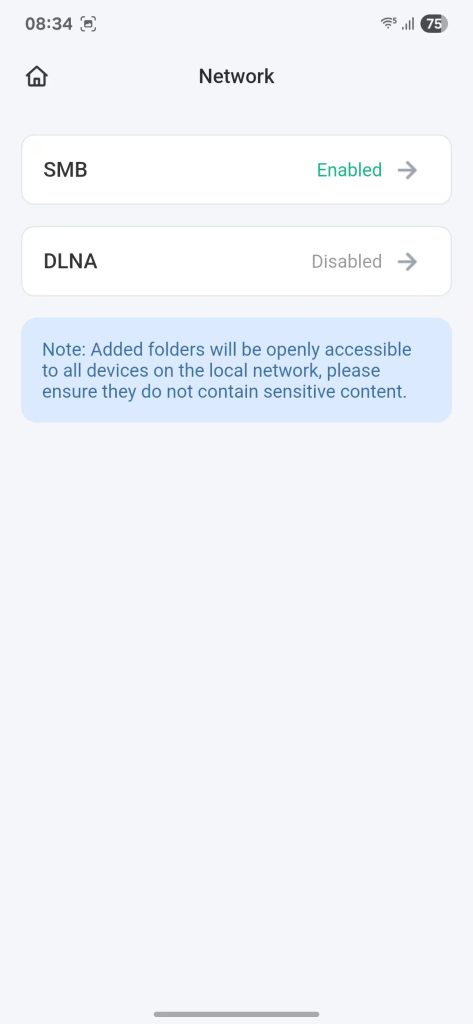
1.2 “Click ‘DLNA’, enter the settings page, then click the ‘Enable’ button”
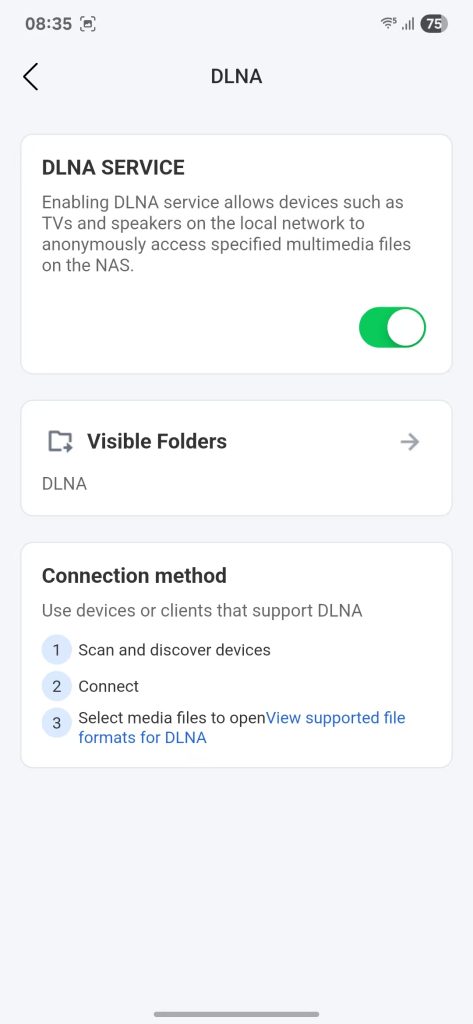
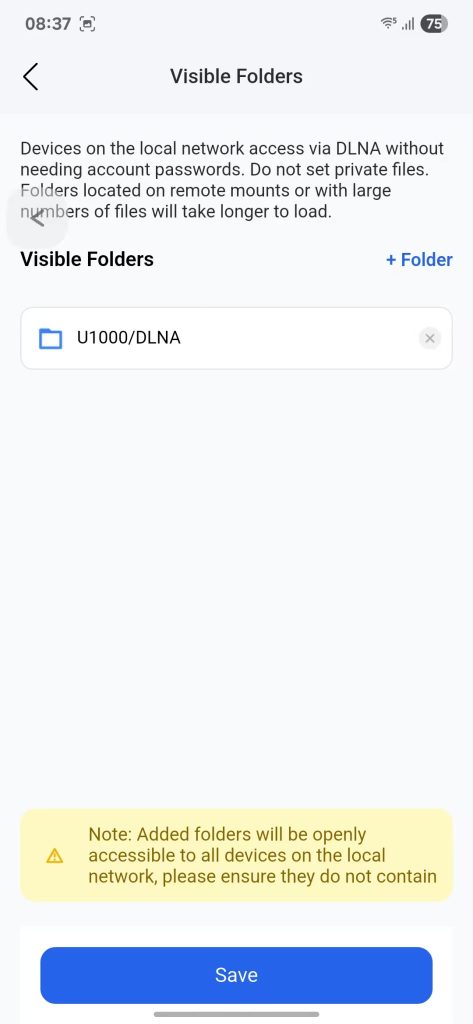
1.3 “Click ‘Visible Folders’, then click ‘Folder’, select a folder, and click ‘Choose Directory'”
2. PC Client Settings for DLNA Method #
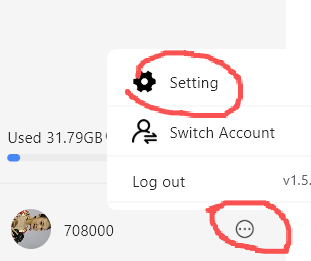
2.1 Open the PC client – Click the “three dots” button in the lower right corner, then click “Settings”
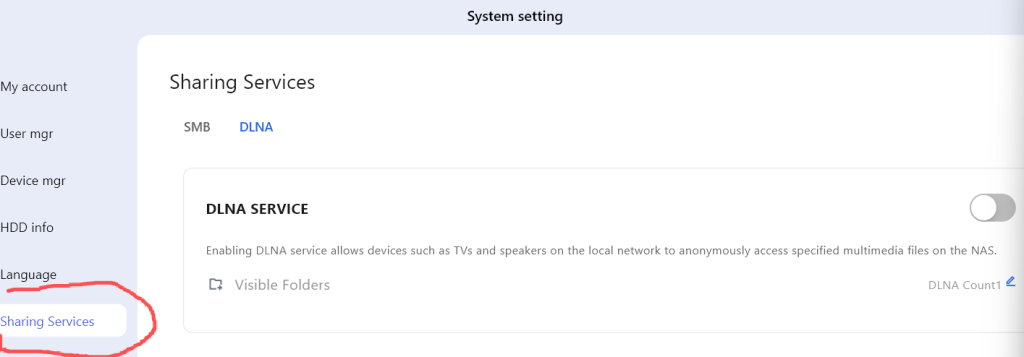
2.2 System Settings Page – Click “File and Sharing Services” in the left navigation bar
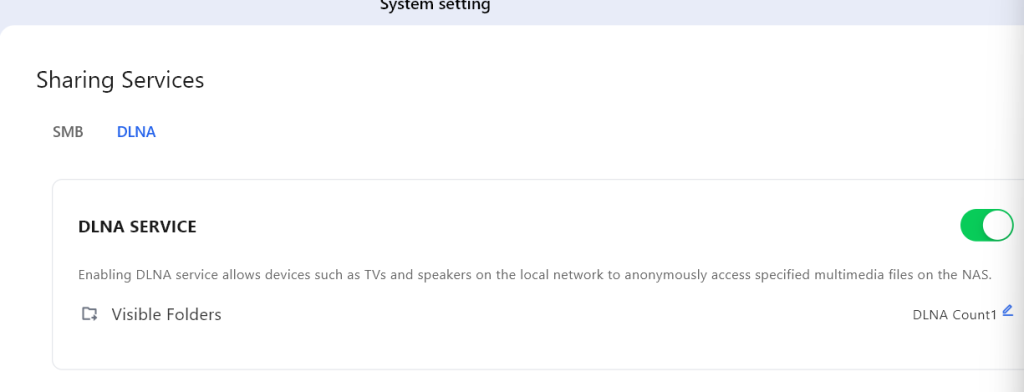
2.3 Click on the “DLNA” option in the right navigation bar, and then click the “Enable” button
2.4 Click on ‘Visible Folder’, select the folder shared by DLNA, and after setting it up, click ‘OK’
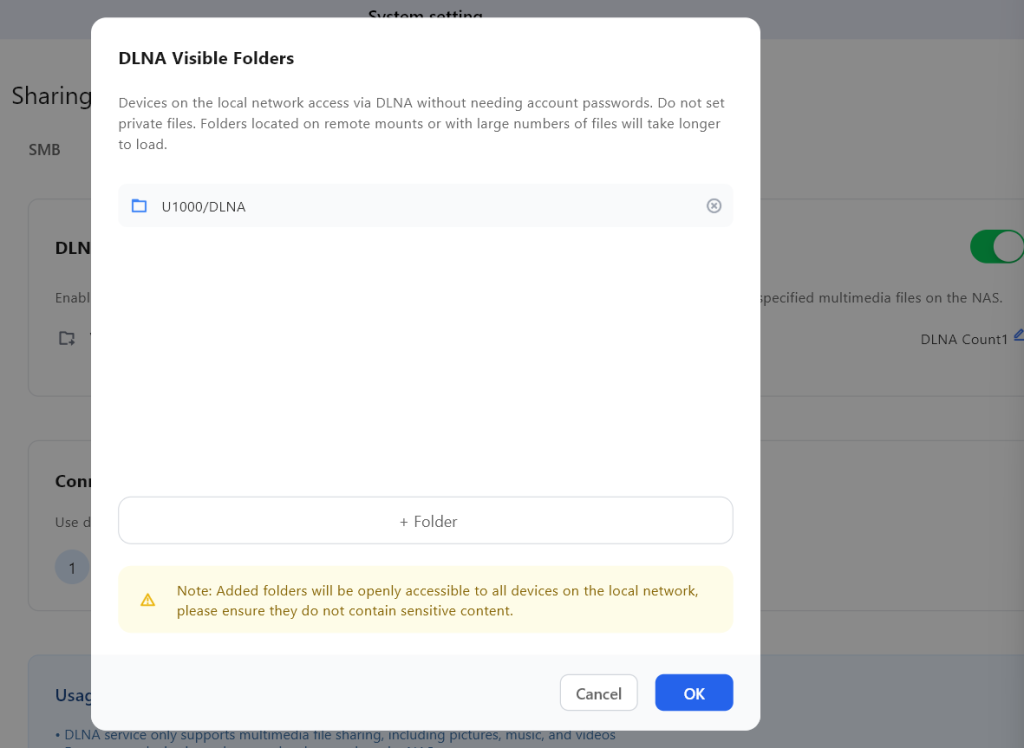
1.4 “Click ‘Save’ to complete the DLNA service setup”
3. “DLNA connection method” #
3.1 “Use devices or clients that support the DLNA protocol, such as VLC”
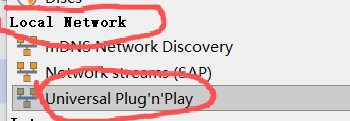
“Open VLC, click ‘Local Network’, then click ‘UPnP'”
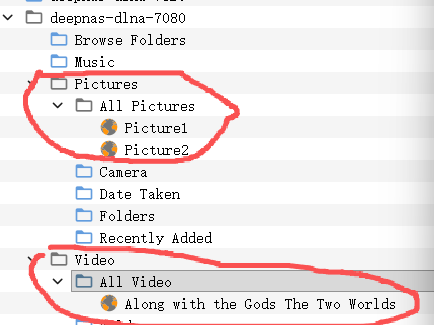
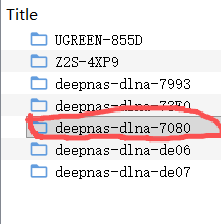
3.2 “Locate the device labeled with the last four digits of NAS SN in the menu bar, e.g., deepnas-dlna-7080”
3.3 “Select ‘Pictures’, then click ‘ALL Pictures’ to view all images shared through the configured DLNA service.”
“Select ‘Video’, then click ‘ALL Video’ to view all videos shared through the configured DLNA service.”